

APK2Apps · Android app guide

MovieBox Android Guide to Downloads and Device Choices
Understand MovieBox’s Android download page, phone and TV choices, missing version details, and installation checks before using an APK.
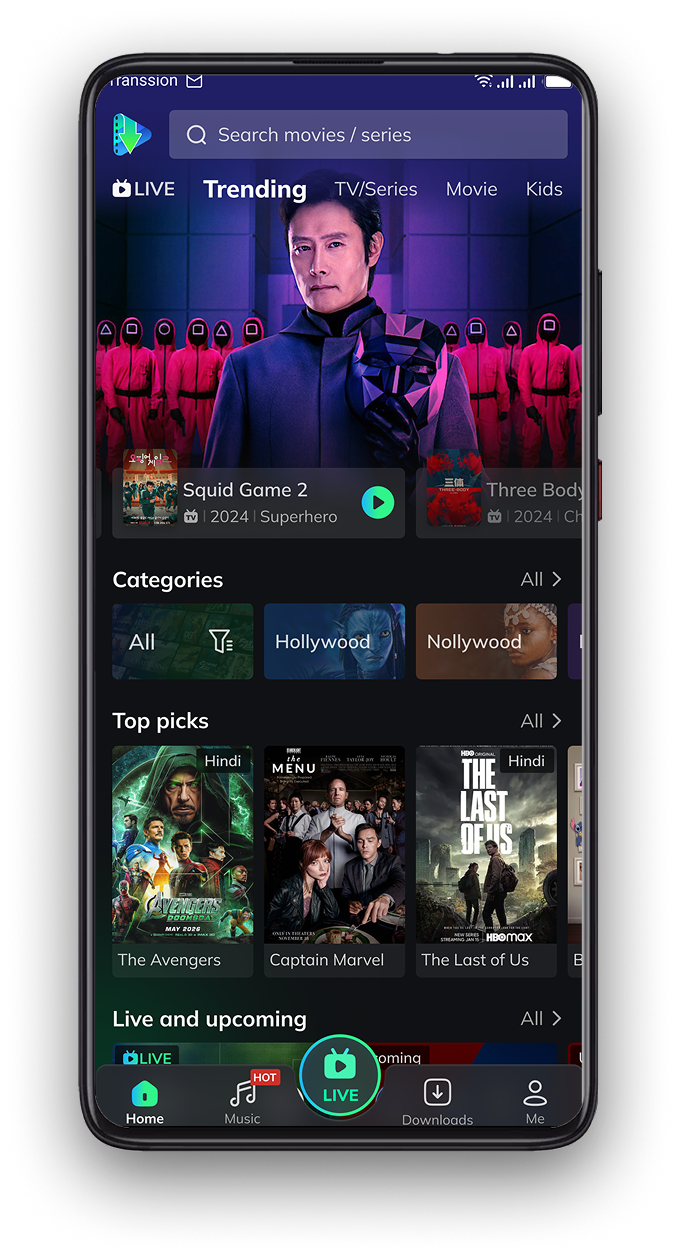
What is MovieBox for Android?
MovieBox for Android is presented by the supplied website as an entertainment app for movies, series and anime. Its download page also describes offline viewing and multilingual subtitles. Those are the website’s descriptions; this guide is a source-based explanation, not a hands-on performance review.
For someone deciding whether to install an APK, the most useful starting point is the download process. A familiar app name or an attractive logo does not tell you which package you will receive. This guide explains the choices shown by the source, the details it leaves unclear, and the checks to make before accepting an installation prompt.
Choose between a phone, tablet and Android TV
The source homepage lists a phone/tablet download and a separate MovieBox TV APK choice. Treat these as different device options. A television interface may be intended for a remote, while a phone interface normally assumes a touchscreen. An Android APK also cannot be installed directly on an iPhone.
Start with the device you actually use
On a phone or tablet, follow the mobile download route. On an Android TV device, look for the TV option on the source homepage. Do not choose a package purely because its filename looks newer. If the source does not explain compatibility for your device, stop and obtain that information first.
A download page may show desktop instructions or a QR code when opened on a computer. That does not make the file a Windows installer. The type of package matters: an APK is for Android, and the installation workflow on a computer is a separate question.
How the MovieBox download page works
The source’s download button is managed by JavaScript rather than a stable APK link visible in the page we checked. APK2Apps therefore links to the supplied download page instead of presenting an unverified file address as a direct download.
Follow one download at a time
- Open the MovieBox app information page and review the source link.
- Open that source and locate its MovieBox download control.
- Watch your browser’s download list to confirm that a file starts downloading.
- Wait for completion before opening the package.
- If another tab or advertisement opens, return to the intended source and check what you clicked.
There is no reason to start several copies of the same download while the first is still running. Multiple files make it harder to identify which package came from which page. Keep the source address and downloaded filename together so you can retrace the process later.
| Situation | What to check next |
|---|---|
| Android phone or tablet | Choose the Android mobile download path and check package requirements. |
| Android TV | Review the separate TV option and support for your device and remote. |
| Desktop computer | Use the provider’s desktop instructions; an APK is not a native Windows or macOS installer. |
| Download button opens another page | Confirm the destination and wait for an actual completed file in Downloads before opening it. |
What to check before installation
The checked download page does not clearly specify a current version, exact file size or minimum Android version. We have left these details unspecified rather than guessing. A statement such as “latest” is not a version number and should not be treated as evidence that two files are identical.
Review the package and Android prompts
Check the filename and any package details Android displays. If you already have an app with the same name, compare its origin before attempting an update. Do not uninstall it just to silence a conflict message; removing an app can remove local settings and data.
Allow installation only for the browser or file manager opening the package, and review requested permissions. Keep Play Protect enabled. A successful installation only means Android accepted the package; it does not confirm that the source, streaming catalogue or content rights are trustworthy.
If the download or installation fails
Separate a download problem from an installation problem. If the browser never creates a file, revisit the source control and check the connection. If the package downloads but Android rejects it, inspect the actual error rather than repeatedly tapping Install.
Use the error message as the next step
An interrupted download, insufficient storage, a device mismatch or a conflict with an installed package can require different responses. Delete an incomplete copy before downloading again. For a security warning, investigate the source and package rather than disabling protection. Our Android APK installation guide explains the general workflow.
MovieBox questions before you decide
Does this guide verify MovieBox’s performance?
No. We checked the supplied website, but did not install, benchmark or malware-scan its APK.
Does offline viewing prove a video can be downloaded lawfully?
No. A technical feature and permission to access or save a particular video are separate matters. Check the provider’s terms and available rights.
Where should I check for changed download details?
Return to the supplied source and compare its current information. This article records what was visible on the check date.
Keep the source and device choice clear
The practical approach to a MovieBox Android download is to identify your device, follow the supplied route, and check the package before installing. Missing details should prompt a question, not a guess. Use the app page below when you need the source link and return to this guide when you want the explanation behind the choices.